 Meals
A little help
Your cooking, quietly organized.
Short guides to the things you can do in Meals.
Early access is by invitation. Requires iPhone with iOS 26 or later. Join the waitlist if you haven’t received an invitation.
Data privacy & your choices
Meals recognizes and organizes food photos on your iPhone. Originals stay in Photos; your private journal syncs through your Apple account. Share only what you choose. Optional Help improve Meals sends title corrections, recipe text and usage metrics; photos, Health data and voice recordings are excluded.
Settings groups your Photos, sharing, improvement and account controls. Review feedback, change permissions or sharing, sign out, or delete Meals account data. Original Photos and existing Health entries remain.
Automatic private journal
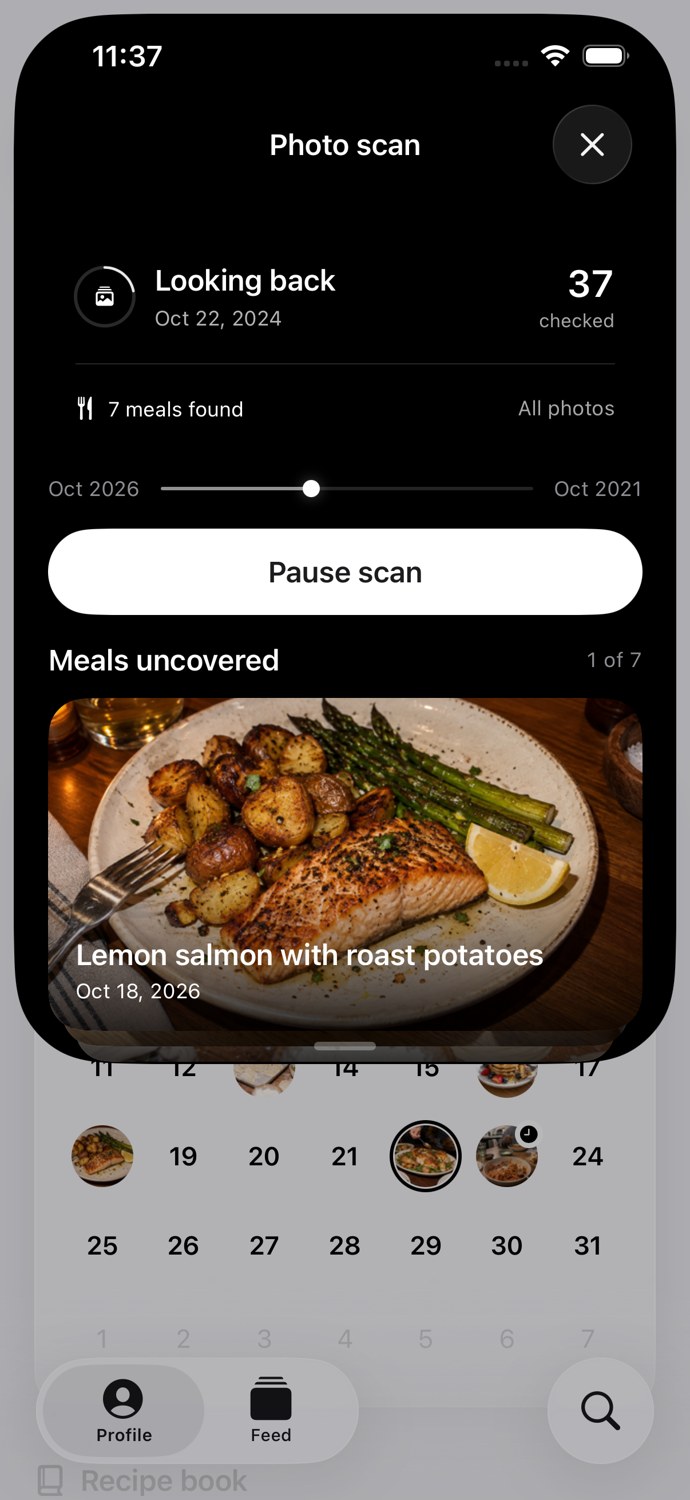
The food photos you already take become a private cooking journal on your iPhone. Originals stay in Photos. Your journal syncs through your Apple account. Share only what you choose.
Profile → calendar. Choose a scan period, then grant Full Photos Access to complete setup. If access is limited later, scanning only sees the photos you allow. Recognition can miss meals.
Calendar, search & memories
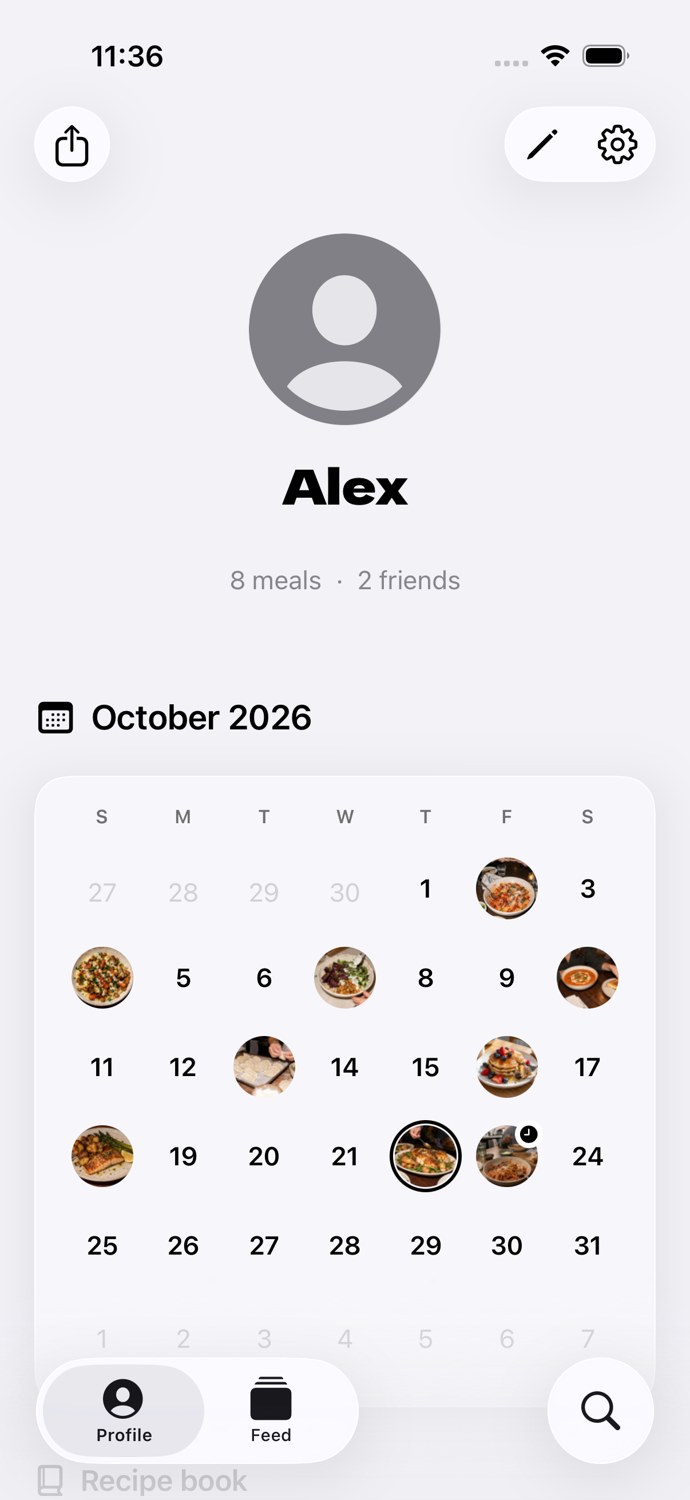
Look back by date, search for a meal, or follow a food tag. Want to look further back? Choose Scan all photos for the library Meals can access.
Profile → calendar. Tap the month and year to jump to a date, or swipe between months. Search finds your meals and those shared with you. Tap the scanning pill for the date, checked-photo count, uncovered meals and pause controls. A first full-library scan can take time; plugging in is recommended.
Links & cookbook imports
A link, a cookbook page, or your own notes: bring the recipes you love into one private book. Photos and scans are read on your iPhone.
Profile → Recipe book → Import recipe. Choose a link, photos, scan, file or typed recipe. Review quantities and instructions; some websites restrict access.
Cook it & optional voice
Open a saved recipe and tap Cook it. Keep your place with clear steps and ingredients close by. On compatible iPhones, optional on-device voice and Apple Intelligence can help as you go.
Recipe book → open a recipe → Cook it. Basic steps work without Apple Intelligence. Voice needs permissions and supported on-device speech; assistant features need compatible hardware and enabled models.
Close circle & social meals
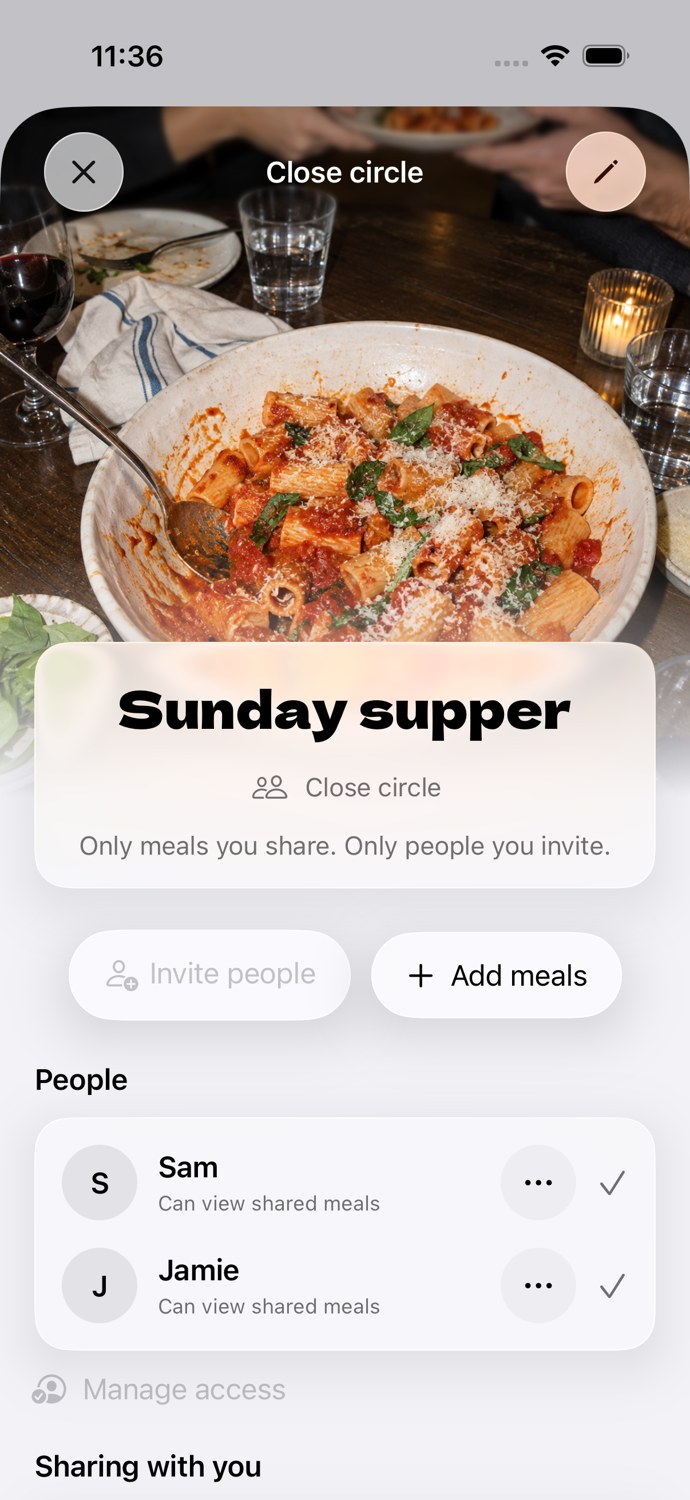
Meals start Only you. Invite the people you already share life with, then choose the meals they can see. Hearts and threaded comments keep the conversation with the meal.
Feed → Create circle. Set its name and cover, then invite people or add meals. Your circle stays in the small circles row. Build 46 beta adds independent circles on enabled accounts. A circle invitation does not publish every meal; choose visibility on the meal. Early access still needs an invitation code.
Recipe ideas & edits
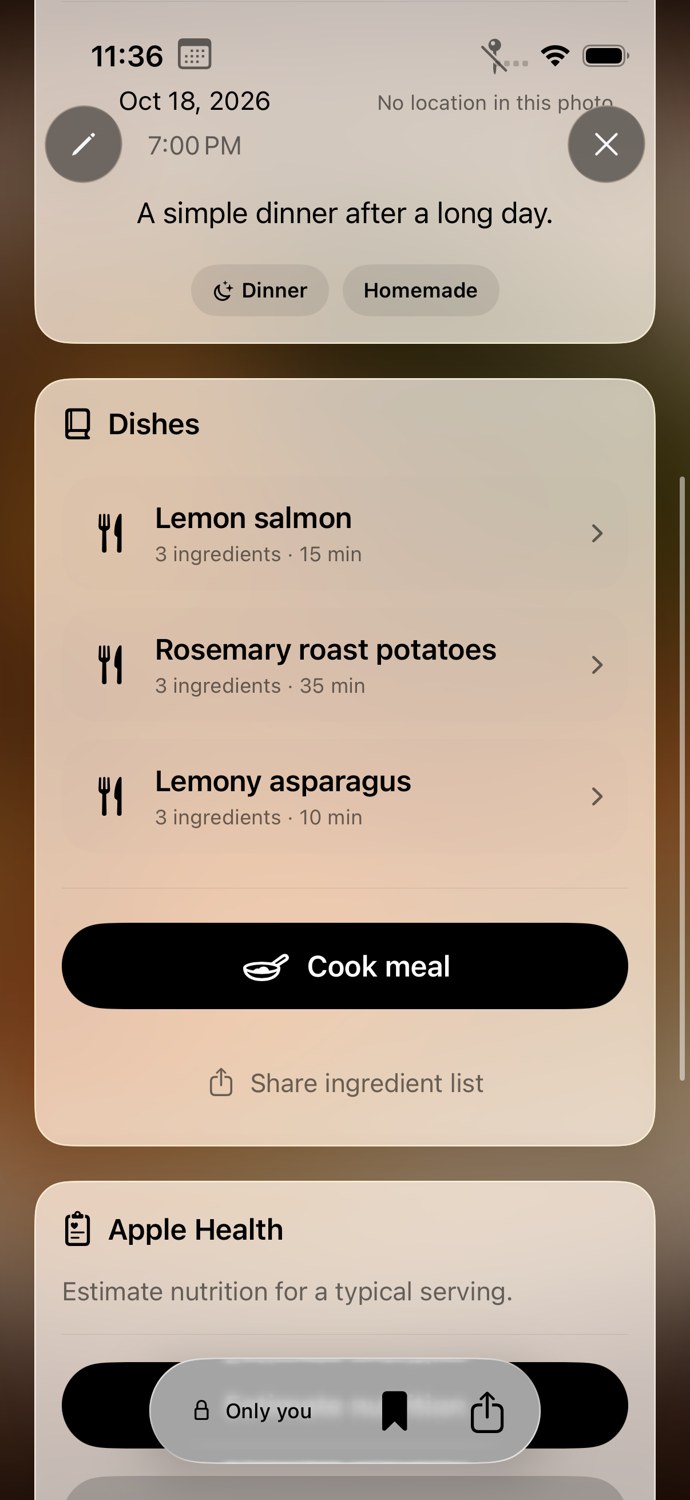
On compatible iPhones, Apple Intelligence can suggest a recipe from a meal and help revise a saved recipe. Describe the change you want, review the result, and keep the version you like.
Meal → Dishes → open a dish. Save the dish you want or cook the meal. For a saved recipe, use Edit to describe changes. Suggestions are guesses; review ingredients, quantities, allergens and instructions. Apple Intelligence availability varies.
Future meal plans
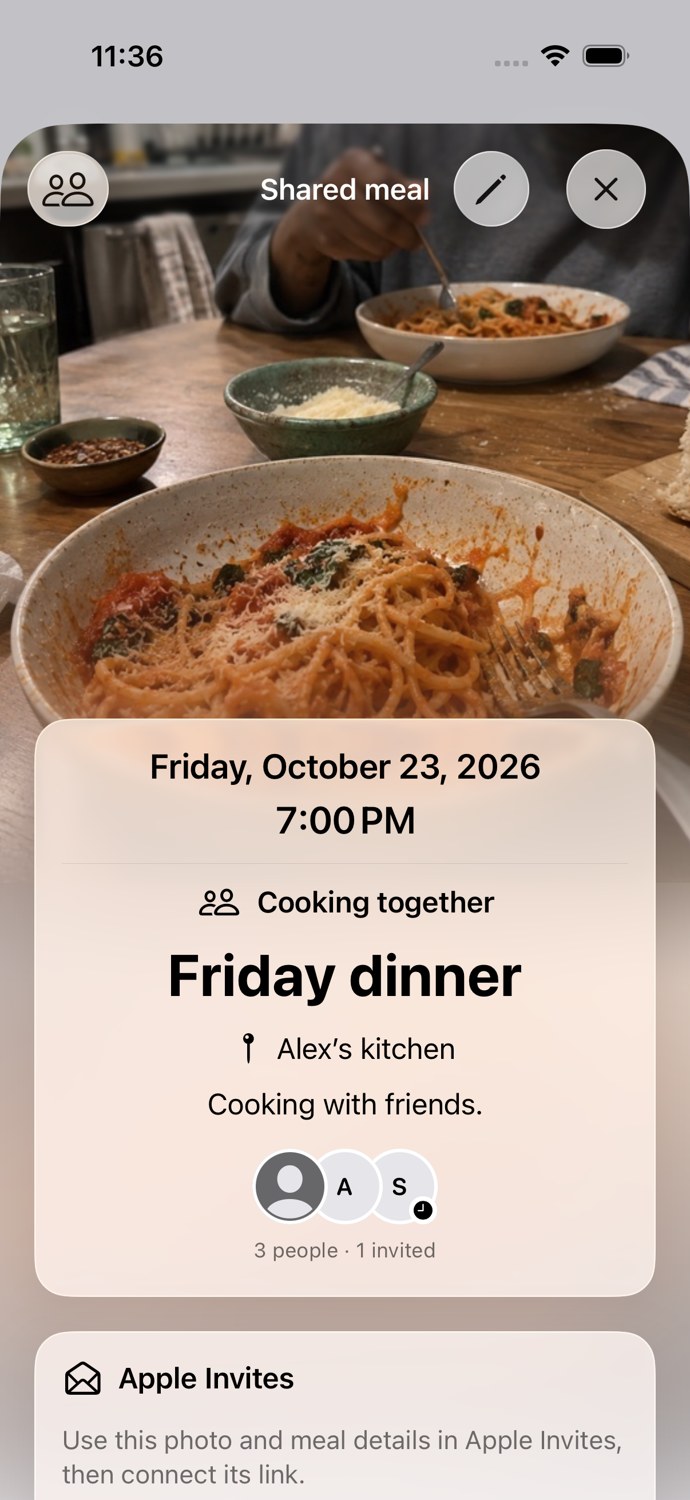
Pick a date, add a recipe, and keep your next meal on the same calendar as the ones you remember. Your plan is there when you need it.
Profile → future date → Plan a meal. Add recipes, a cover, date, time and invited people. Export its photo and details to Apple Invites, then connect an invitation link. Creating an invitation is a separate step.
Apple Health nutrition
Review nutrition and choose to save it to Apple Health. On compatible iPhones, Meals can suggest a clearly labelled typical-serving estimate. Automatic logging is a separate choice; a photo does not measure what you ate.
Open your own meal → Health card. Review or enter nutrition before saving, or separately enable automatic estimates in settings. Health permission is optional; shared meals do not automatically write to Health.
Ingredient lists & Notes
Open a recipe, share its ingredient list, and save it in Notes or another app you choose. Keep the list close without copying every line.
Open a recipe → Share ingredient list → Notes or your chosen destination. This sends a list; live Notes or Reminders synchronization is not implemented.
Meal & profile editing
Choose the highlight photo, fix a title, add more photos, or call a familiar place Home. Update your profile and food tags whenever your cooking changes.
Tap Edit or long-press a field to edit in place. Choose a highlight, drag photos to reorder, or remove one. Tags and occasions share one picker; removing an occasion removes its styling. Profile → Edit changes your name, photo and food preferences. Location nicknames can be reused when locations match.
Shared ownership
Add a collaborator to a meal or plan so you can contribute and edit together. Your close circle and a meal’s collaborators are separate choices.
Open a meal or plan → sharing/collaborator controls. Invite the intended collaborator. Collaborators can edit; viewers have different permissions. Verify the invitation together.
Meals is independently developed. Apple Intelligence, on-device voice and Apple services depend on your device, language, permissions and service availability. Optional Help improve Meals sends text corrections and usage metrics, without photos, Health data or voice recordings; see Privacy.
In beta
Matched meals and holiday styling are enabled for selected testers. They may not appear in every account. Shared links currently open through supported Apple sharing; an install-free public preview is not available.